
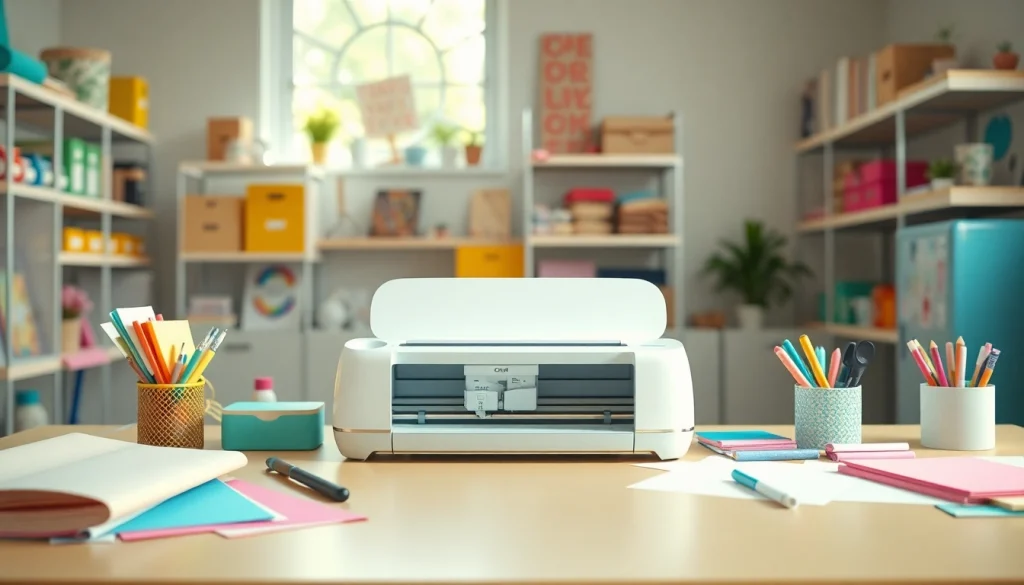

Getting Started with Cricut for Beginners
Welcome to the world of Cricut crafting! If you’re new to using a Cricut machine, you’re in for an exciting journey full of creativity and fun. This guide will help you navigate the essentials of Cricut projects, tools, and techniques specifically designed for beginners. Whether you want to create personalized gifts, stunning home decor, or unique crafts, knowing the basics will set you on the right path. When exploring options, Cricut for beginners provides comprehensive insights and resources tailored to your needs.
Understanding the Cricut Machine: Basics for New Users
The Cricut machine is a versatile tool that simplifies crafting projects, making it easier than ever to express your creativity. Here are some of the key features that beginners should be aware of:
- Cutting Capability: Most Cricut machines can cut a variety of materials, including vinyl, paper, cardstock, and fabric.
- Design Space Software: This user-friendly software allows you to create and modify designs before sending them to your Cricut.
- Print Then Cut: This feature enables you to print designs and have your Cricut cut them out precisely.
- Smart Materials: Compatible with the Cricut Maker 3 and Explore 3, these materials allow you to make long, continuous cuts without a mat.
What to Buy: Essential Tools and Materials for Beginners
Getting started with Cricut involves gathering the right tools and materials. Here are some essentials you should consider:
- Cricut Machine: Choose the right model based on your crafting needs. Beginners might find the Cricut Explore Air 2 or the Maker to be suitable options.
- Cutting Mats: These are crucial for holding your materials in place while cutting. Get a variety of mats for different materials (light grip, standard grip, heavy grip).
- Weeding Tools: These tools help you remove excess material from your designs, making the finishing touches easy and precise.
- Vinyl and Paper: Stock up on different types of vinyl and paper to experiment with various projects.
- Transfer Tape: This is essential for moving your vinyl designs onto surfaces without losing detail.
Setting Up Your Cricut: Step-by-Step Instructions
Setting up your Cricut machine is straightforward. Here’s a simple step-by-step process:
- Unbox Your Machine: Carefully remove the Cricut from its packaging and make sure you have all the accessories.
- Download and Install Design Space: Visit the Cricut website to download the Design Space software and create an account.
- Connect Your Machine: Use a USB cable or Bluetooth to connect your Cricut to your computer or mobile device.
- Perform a Test Cut: Follow the prompts in Design Space to perform a test cut. This helps ensure everything is working as it should.
First Projects to Try: Simple Ideas for New Users
Easy Vinyl Cutouts: Your First Cricut Creation
Creating your first project can be thrilling! Vinyl cutouts are an excellent way for beginners to dive into Cricut crafting. Start by choosing a simple design or phrase, then follow these steps:
- Open Design Space and select a pre-made design or create your own.
- Set your material to vinyl in the software.
- Load your vinyl onto the cutting mat and insert it into the machine.
- Once the cut is complete, use your weeding tool to remove excess vinyl.
- Finally, apply transfer tape to your design, then place it on your chosen surface.
Paper Crafts: Fun and Creative Projects for Beginners
Paper crafts are another fantastic starting point. Here are some ideas for beginner-friendly projects:
- Greeting Cards: Use different colors and textures of cardstock to create customized greeting cards for any occasion.
- Paper Flowers: Design and cut various flower shapes to create beautiful paper bouquets.
- Labels and Tags: Make personalized tags for gifts or organization around your home.
Personalizing Items: Using Cricut to Create Unique Gifts
One of the most rewarding aspects of using a Cricut machine is personalizing items for friends and family. Think about customizing items like:
- T-Shirts: Use heat transfer vinyl (HTV) to create custom apparel.
- Mugs: Apply permanent vinyl to create personalized coffee mugs.
- Home Decor: Design wall art or quote signs that reflect your style or message.
Mastering Cricut Design Space: Navigating the Software
Beginner’s Guide to Design Space: Features and Functions
Cricut Design Space is the hub for creating and modifying designs. Here’s a brief overview of its key features:
- Canvas Area: This is where you create your designs, using a variety of shapes, text, and images.
- Image Library: Access thousands of images, fonts, and templates to inspire your projects.
- Upload Feature: Bring your own images and SVG files into the software for cutting.
Uploading and Using SVG Files: A Step-by-Step Guide
If you want to use custom designs, uploading SVG files is essential. Here’s how to do it:
- In Design Space, click on the “Upload” button in the sidebar.
- Select your SVG file from your computer and click “Upload.”
- Once uploaded, choose “Insert Images” to add it to your canvas.
- Resize and position your design as needed before cutting.
Tips for Design Success: Best Practices for Beginners
To ensure inspiring and effective design outcomes, consider these tips:
- Start with simple designs: Avoid overwhelming yourself with complex projects at first.
- Utilize layers: Design Space allows you to layer different elements for intricate designs.
- Preview your cut: Always use the preview feature before cutting to ensure everything is aligned correctly.
Troubleshooting Common Issues: FAQs for New Cricut Users
Common Setup Problems: How to Resolve Them Quickly
Even when starting, you might face some hiccups. Here are common issues and their solutions:
- Connectivity Issues: Ensure your machine is properly connected via USB or Bluetooth between the Cricut and your device.
- Design Space Errors: If Design Space isn’t responding, try rebooting your device or reinstalling the software.
- Material Loading Problems: Make sure the material is loaded correctly on the cutting mat before starting the cut.
Cutting Errors: What They Are and How to Fix Them
Cricut machines may occasionally produce cutting errors. Here’s how to troubleshoot:
- Blade Issues: Ensure your blade is clean and properly installed. A dull blade may require replacement.
- Material Thickness: Double-check that your material is compatible with your machine and blade settings.
- Mat Adhesion: If materials aren’t sticking during cuts, consider using a new mat for better adhesion.
Maintaining Your Cricut Machine: Best Practices for Longevity
Maintenance is crucial for ensuring your Cricut machine’s longevity. Follow these best practices:
- Regularly clean the blade and housing to prevent buildup of materials.
- Store your machine in a dust-free place when not in use.
- Keep the cutting mats clean and replace them when they lose stickiness.
Community and Resources: Connecting with Other Cricut Enthusiasts
Online Forums and Groups: Where to Find Support
Connecting with other Cricut users can enhance your learning experience. Consider joining:
- Facebook Groups: Join groups dedicated to Cricut enthusiasts where you can share ideas and get advice.
- Cricut Community Forums: These forums allow you to ask questions and engage with experienced users.
Best YouTube Channels for Beginners: Learning from the Pros
There are numerous resources available, and YouTube is a treasure trove of tutorials:
- Jennifer Maker: Offers in-depth projects and tips for all skill levels.
- Cricut: The official channel provides product tutorials and project inspiration.
Cricut Events and Workshops: Join the Crafting Community
Participating in events can deepen your skills and connect you with fellow crafters:
- Cricut Workshops: Look for local workshops that offer hands-on experience with machines and materials.
- Crafting Expos: Attend expos to see new products and gain new crafting ideas and techniques.